The below steps outline the configuration of IGT (MeRS) with Idealpos.
Contact IGT to setup an account/supply/install IGT hardware/software.
Idealpos Solutions does not supply, install or setup any IGT products.
To use the IGT (MeRS) Interface, the IGT module will need to be enabled for each Terminal.
Go to: Back Office > Setup > Licence Gateway and ensure that IGT appears in the Options column for each Terminal.
Contact Idealpos or your Idealpos Reseller to purchase the IGT module for Idealpos.
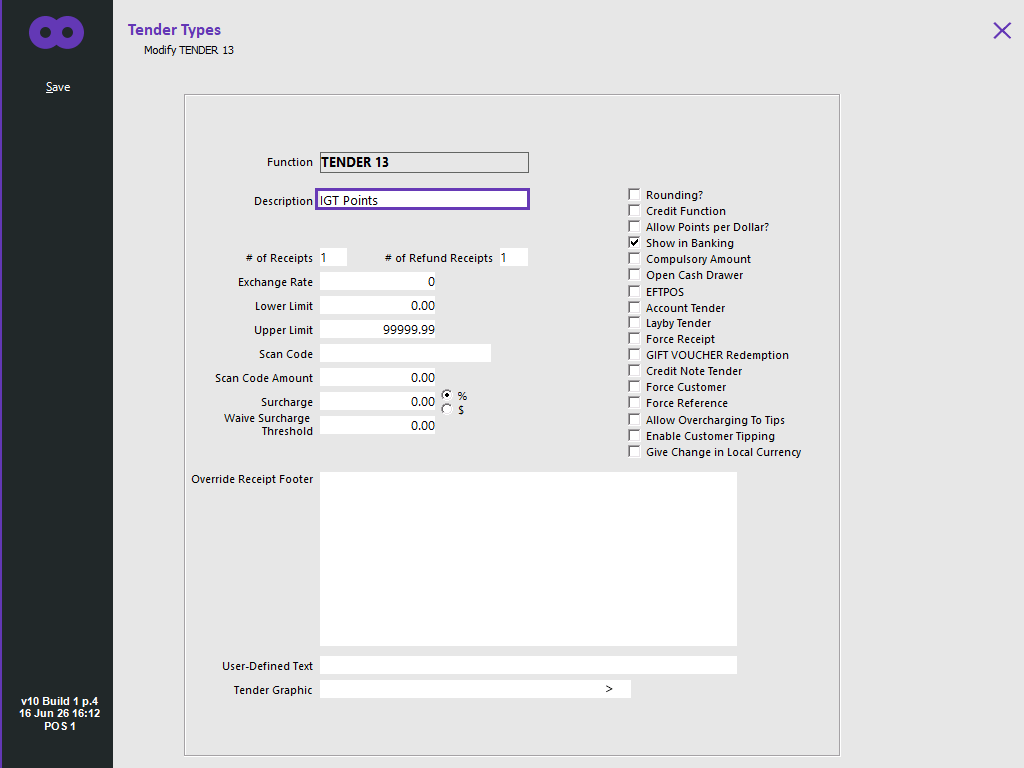
Ensure that a Point Redemption Tender Type has been setup if Point Redemption functionality will be used.
To configure a Redeem Points Tender, go to: Back Office > Setup > Tender Types > Select an unused Tender > Modify.
Description: IGT Points [or enter the desired description]
Configure any other options as required > Press "Save" on the top-left corner.
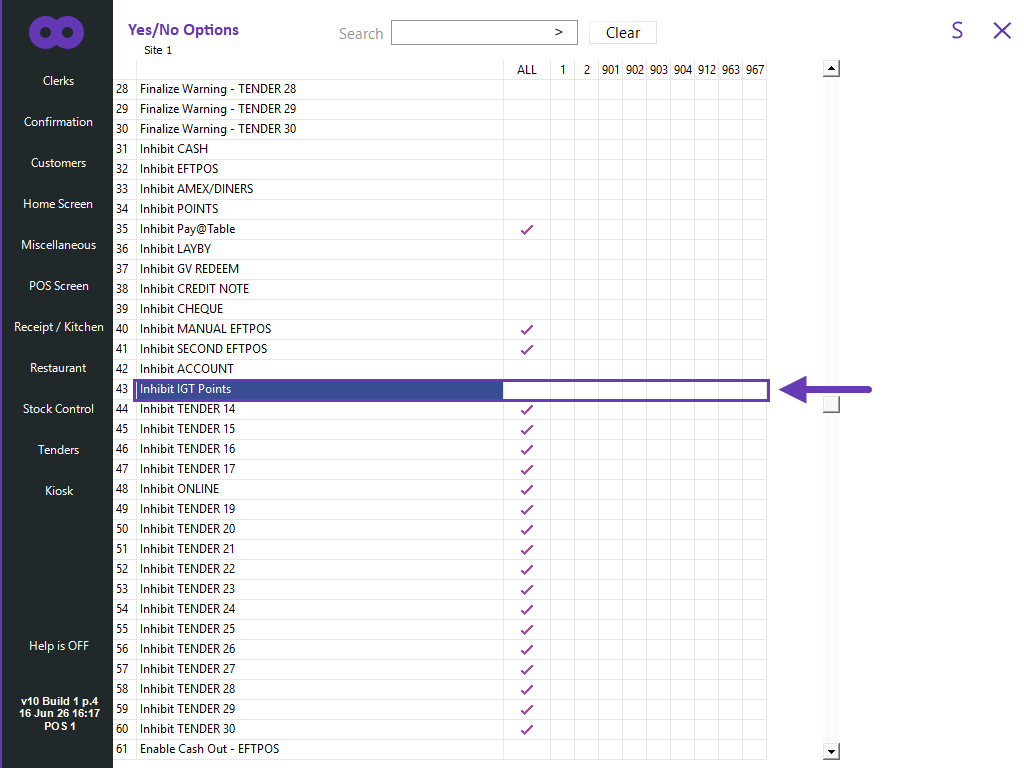
The Tender will need to be enabled on the POS Screen.
Go to: Back Office > Setup > Yes/No Options > Tenders > Ensure that Inhibit Tender is unchecked for the IGT Points Tender.
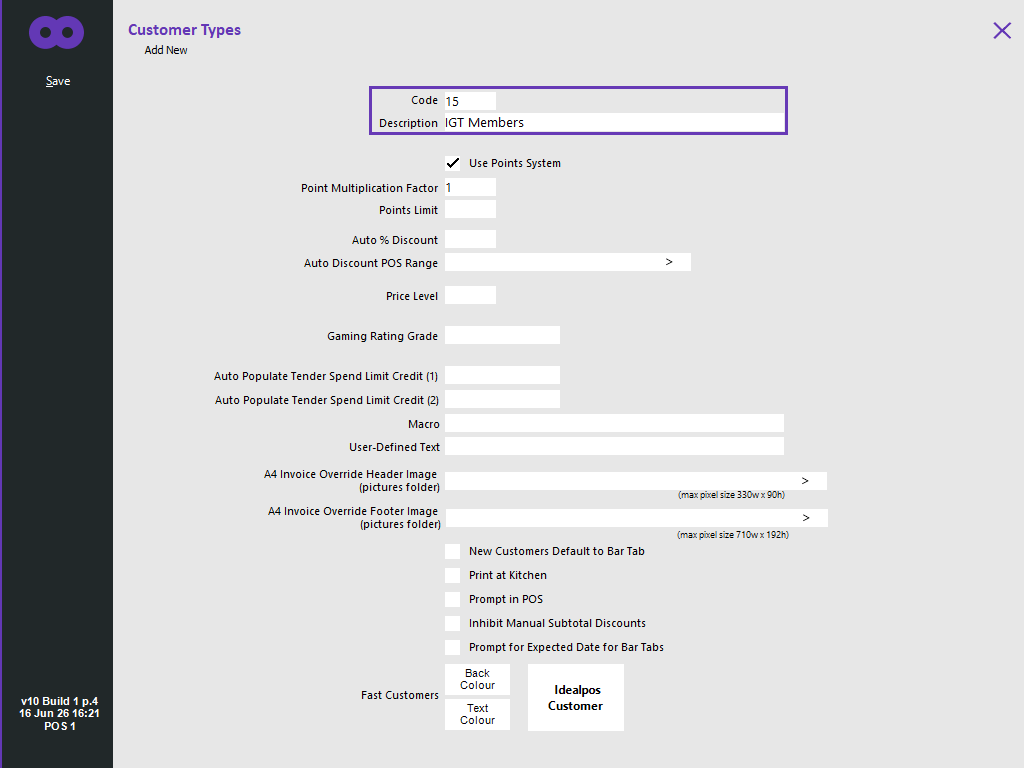
Any new members that are added to Idealpos will be assigned to a Customer Type if the Add Members to POS option is enabled.
New Customer Type(s) can be created by going to: Back Office > File > Customers > Customer Types > Add.
When creating a new Customer Type for IGT Members, ensure that the Customer Type Code is noted as this code will be required when setting the Customer Type for the IGT Gaming Interface.
If using Gaming Rating Grade functionality, multiple Customer Types will need to be created.
For each Customer Type created, ensure that the Gaming Rate Grade field is configured as required (enter the "Gaming Rate Grade" that has been set in IGT).
IGT allows for Customers to be rated using the Member Rating Grade that has been pre-defined with the IGT software.
These grades can be linked to Idealpos to ensure the grading is consistent.
Press the "Save" button on the top-left corner after configuring the Customer Type.
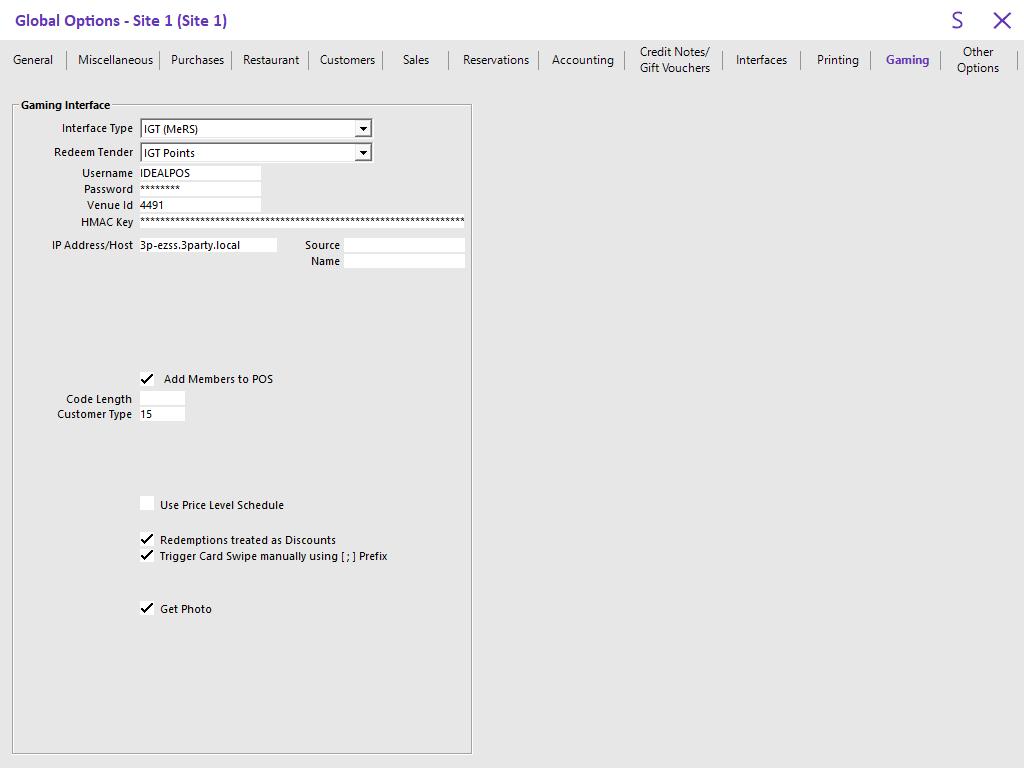
Go to: Back Office > Setup > Global Options > Gaming.
Configure the following options as required:
Interface Type – IGT (MeRS)
Redeem Tender – Select the Tender that you created for Points.
Username - Enter the Username supplied by IGT.
Password – Enter the Password supplied by IGT.
Venue ID – Enter the Venue ID supplied by IGT.
HMAC Key - Enter the HMAC Key supplied by IGT.
IP Address/Host – This is the IP Address of the host PC that has IGT installed.
Source - Enter the name of the Source.
Name – This is the name of the database for the Machine Lookup
Add Members to POS – Select this field to add the members to the Idealpos Database if they are not already. If you are using ratings grade from IGT, you will need to create a Customer Type for each grade you will use.
Code Length – This is the length of the Code that will be entered into the Idealpos database.
Customer Type – This is the Customer Type the new members will be added to in Idealpos.
Use Price Level Schedule – Check this if you want to use the Price Level Schedule function.
Redemptions treated as Discounts – Toggle this setting on or off.
Trigger Card Swipe manually using [ ; ] Prefix - This setting will trigger any input received via the Keyboard Wedge which contains this prefix as a Card Swipe.
Get Photo – Select this to pull the member photo from the IGT database.
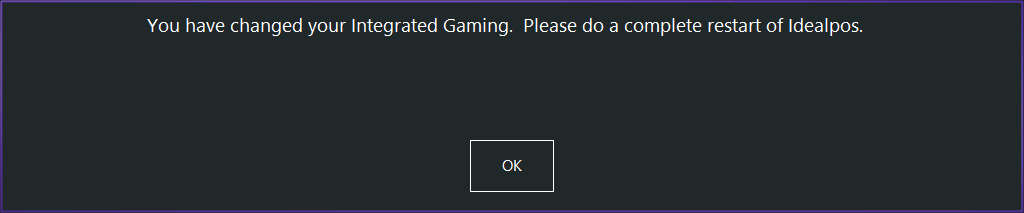
After configuring the above options, Idealpos will display a prompt "You have changed your Integrated Gaming. Please do a complete restart of Idealpos".
To restart Idealpos, go to: Start > Idealpos > IPSUtils > Close > Confirm.
The following User-Defined options should only be created if required to override the default Port Numbers.
To create the User-Defined Options, go to: Back Office > Setup > POS Terminals > Select a POS Terminal > Modify > POS Settings tab > User-Defined Options.
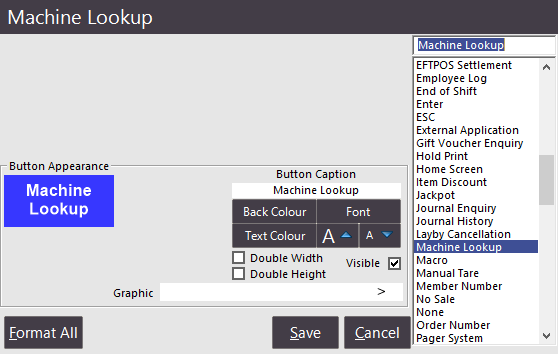
A POS Screen button can be used when using a Standalone system to lookup a machine through the POS to see the membership details of the person sitting at that machine.
Go to Setup > POS Screen > POS Screen Setup > Layouts > Buttons > Machine Lookup.
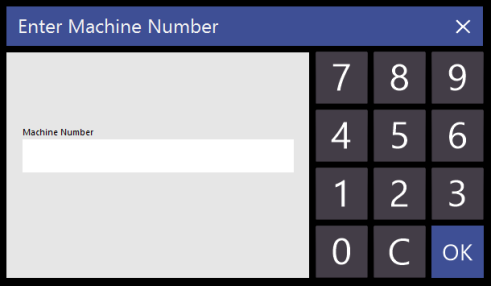
When pressed on the POS Screen a ‘Get Machine Number’ window will open.
Enter the machine number into the field and press Enter.
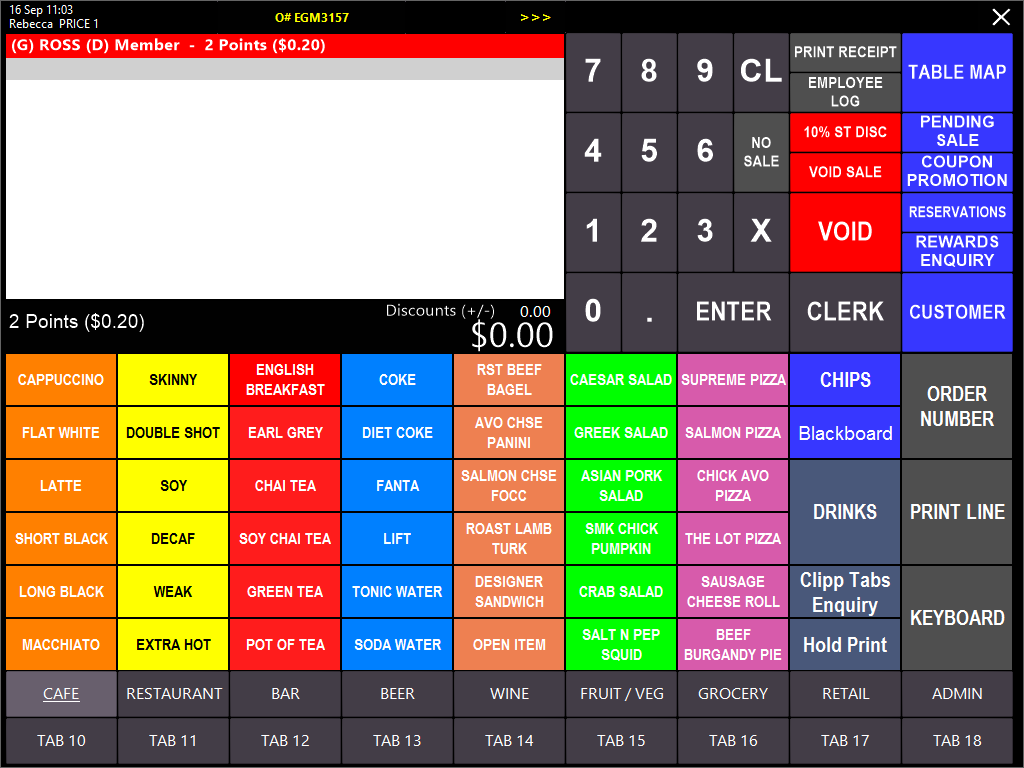
The details of the member sitting at that machine will be displayed on the POS Screen.
Available through approved resellers only.
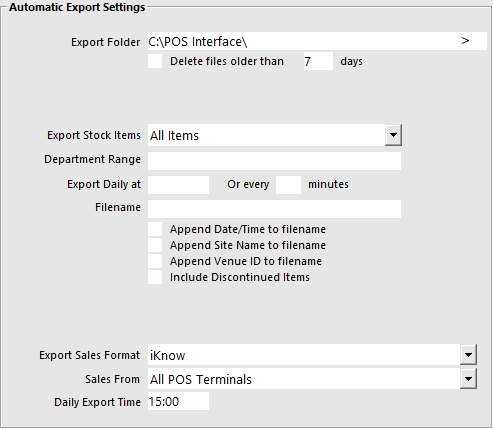
The IGT iKnow Interface allows data to be exported for use in the IGT Membership Database for specific sales reporting.
Once the module has been activated, go to Setup > POS Terminals > Modify the terminals required > Import/Export > Automatic Export Settings > Export Sales Format Settings: iKnow.